Version: 4.5.0
View as PDF.
1. Configuring ePolicy Orchestrator
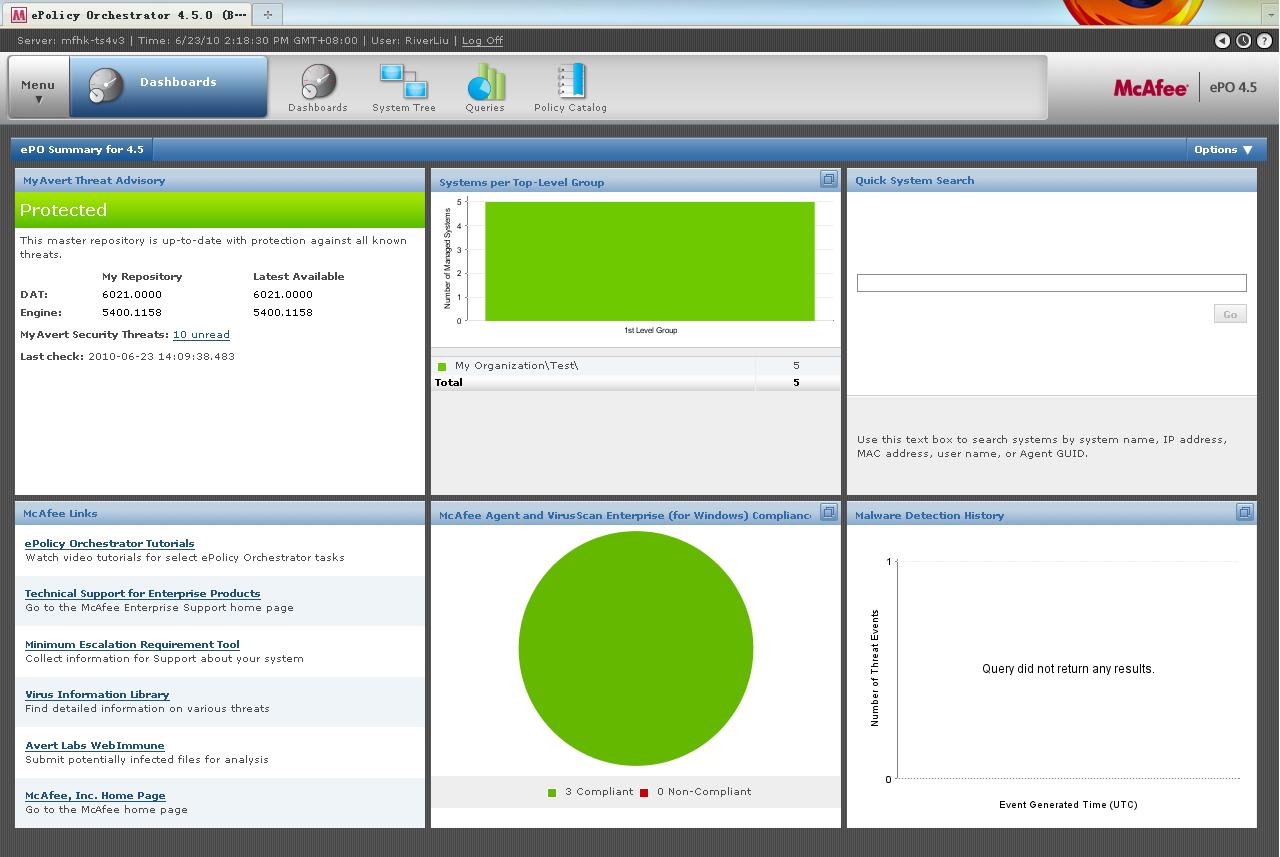
After logging in, the Dashboard panel would be shown as:
1.1 Viewing the server version number, edition, license and extension information
Version number and Edition | Click Menu | Software | Extensions, and then click Server in the McAfee category of the Extensions list. Scroll through the server extension to ePO Core. |
License | Go to the logon page. |
Extension Information | Click Menu | Software | Extension. Select a category from the Extensions list to view details. |
1.2 Set up user accounts
Click Menu | User Management | Users.
You may create, edit and delete user account here.
1.3 Assign permission sets
Click Menu | User Management | Permission Sets.
You may create, duplicate, edit and delete permission set here.
1.4 Configure ePO server settings
Click Menu | Configuration | Server Settings.
2. Organizing the System Tree
2.1 Creating a Group
1. Click Menu | Systems | System Tree, and then in the System Tree Actions menu click New Subgroup. The New Subgroup page appears.
2. Input a name for the group. Then the new group should be shown in the System Tree list.
3. You may rename or delete the group by highlighting the group and clicking Rename or Delete in the System Tree Actions menu.
NOTE: You cannot rename or delete the group Lost&Found.
2.2 Adding systems manually to an existing group
1. Click Menu | Systems | System Tree, and then in the System Tree Actions menu click New Systems. The New Systems page appears.
2. Select Add systems to the current group (), but do not push agents .
NOTE: This is because that the McAfee Agent is already installed in all systems, and there is no domain administrator could do the Agent deployment for several systems in one shot. However, if there is only one system to be added, you may select Push agents and add systems to the current group () and specify the Credentials for agent installation.
3 Next to Systems to add, type the NetBIOS name for each system in the text box, separated by commas, spaces, or line breaks. Alternatively, click Browse to select the systems. You may add multiple systems in one time.
4. Click OK.
2.3 Moving systems manually within the System Tree
1. Click Menu | Systems | System Tree | Systems and then browse to and select the systems.
2. Click Actions | Directory Management | Move Systems. The Select New Group page appears.
3. Select whether to enable or disable System Tree sorting on the selected systems when they are moved.
4. Select the group in which to place the systems, and then click OK.
NOTE: In addition to the steps above, you can also drag-and-drop systems from the Systems table to any group in the System Tree.
3. Enabling Agents to Manage Systems
Managing network systems effectively is dependent on each system running an active, up-to-date agent.
Before acquiring ePolicy Orchestrator, we have already been using McAfee products like VirusScan Enterprise. It is installed with the agent in updater mode, and uses AutoUpdate in the network. To start managing these products with ePolicy Orchestrator, we can enable the agent that is already on the system.
Based on our situation, there are two suitable methods for this task to Converting the agent mode from unmanaged to managed mode in Windows.
3.1 Reinstall Agent in individual system
1. Export Framepkg.exe to a temporary location on the target system, (that is, the system to be converted from unmanaged to managed mode.)
NOTE: C:\Program Files\McAfee\ePolicy\DB\Software\Current\EPOAGENT3000\Install\0409\
2. Run Framepkg.exe.
3.2 Enforce deployment via ePO server
1. Click Menu | Systems | System Tree. Select the unmanaged system, and click
2. Click Agent | Deploy agents from the Action menu.
3. Specify the Agent version.
4. Check Force installation over existing version.
5. Specify the Credentials for agent installation.
6. Click OK.
7. You may monitor the deployment process through Menu | Automation | Server Task Log.


1 comments:
I'm not sure about the level of protection GPU offered. Many times if my CUDA program went wrong, it would make something on the screen garbled, sometimes persistently. So I guess it's not a very thorough protection. Of course, in most case a protection for frame buffers is good enough.
Post a Comment